YouTube Picture-in-Picture Not Working on iPhone & Android? Here’s the Fix
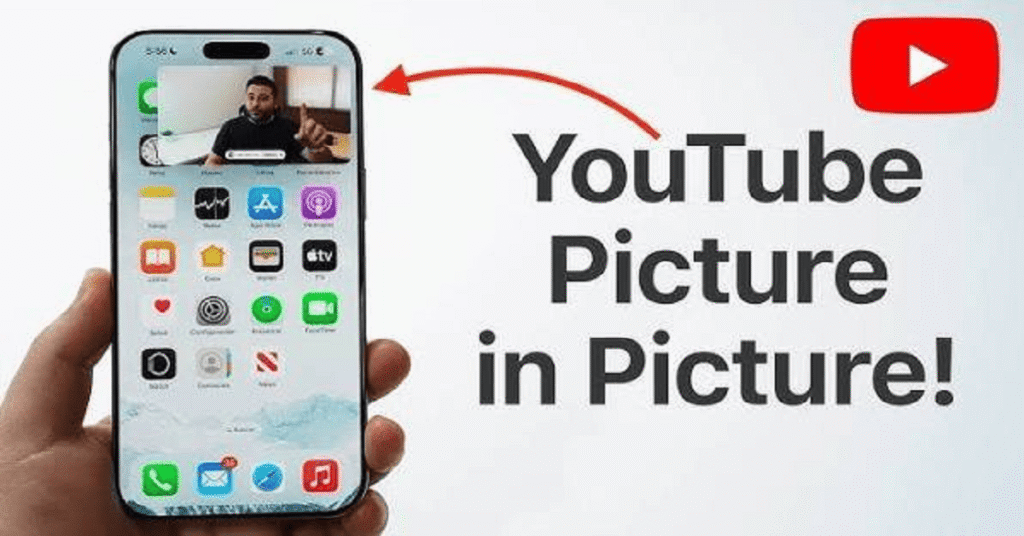
YouTube PiP has become one of the most useful features for people who enjoy watching videos while using other apps on their smartphones, tablets, or computers. Instead of pausing your favorite content every time you switch applications, YouTube PiP allows the video to continue playing in a small floating window. This feature improves multitasking, making it easier to reply to messages, browse the internet, check emails, or use productivity apps without interrupting your viewing experience.
Whether you’re watching tutorials, listening to podcasts, attending educational sessions, or following cooking recipes, YouTube PiP helps you stay productive while keeping your favorite videos visible.
In this guide, you’ll learn everything about YouTube PiP, including how it works, supported devices, setup instructions, benefits, limitations, troubleshooting tips, and best practices.
What Is YouTube PiP?
YouTube PiP, short for Picture-in-Picture, is a feature that lets YouTube videos continue playing inside a small movable window after you leave the YouTube app or browser.
Instead of stopping playback when switching apps, the video remains active in a floating mini-player that can be moved anywhere on your screen. You can resize it, pause playback, or close it whenever you want.
The purpose of YouTube PiP is to improve multitasking without requiring users to stay inside the YouTube application.
How YouTube PiP Works
When YouTube PiP is enabled, the video shrinks into a floating window after you press the Home button or switch to another application.
The floating player usually includes simple playback controls such as:
- Play
- Pause
- Close
- Skip (on supported videos)
Users can drag the floating window to different corners of the screen or temporarily hide it while audio continues playing.
The exact behavior depends on:
- Device operating system
- YouTube app version
- Account type
- Regional availability
Why YouTube PiP Is Popular
Millions of users rely on YouTube PiP because it makes everyday multitasking much easier.
Some common situations include:
Watching Educational Videos
Students often watch lectures while taking notes in another application.
Following Tutorials
Developers, designers, and DIY enthusiasts can keep instructional videos visible while working.
Listening to Podcasts
Many podcast listeners use YouTube PiP to enjoy long discussions while browsing social media or reading articles.
Cooking
Recipes become easier to follow because the instructions remain visible while using timers or checking ingredient lists.
Fitness Workouts
Exercise routines stay on screen while users track workouts or adjust fitness apps.
Devices That Support YouTube PiP
The YouTube PiP feature is available on several platforms.
Android Devices
Android offers one of the best experiences for YouTube PiP.
Modern Android smartphones support Picture-in-Picture through the operating system itself.
Popular Android brands include:
- Samsung
- Google Pixel
- OnePlus
- Xiaomi
- Motorola
- Oppo
- Vivo
iPhone and iPad
Apple devices also support YouTube PiP, although availability depends on:
- iOS version
- YouTube app version
- User account
- Country
Most recent iPhones and iPads provide smooth Picture-in-Picture functionality.
Tablets
Android tablets and iPads benefit greatly from YouTube PiP because larger displays make multitasking more comfortable.
Desktop Browsers
Some desktop browsers support Picture-in-Picture through browser controls or extensions.
Examples include:
- Google Chrome
- Microsoft Edge
- Mozilla Firefox
- Safari
Requirements for YouTube PiP
Before using YouTube PiP, users should verify several requirements.
Updated YouTube App
Always install the latest version of YouTube to access the newest features and bug fixes.
Compatible Operating System
Older Android and iOS versions may not fully support Picture-in-Picture mode.
Device Permissions
Some Android phones require Picture-in-Picture permission to be enabled.
Internet Connection
A stable internet connection ensures uninterrupted playback.
How to Enable YouTube PiP on Android
Setting up YouTube PiP on Android usually takes only a few minutes.
Step 1
Open your phone’s Settings.
Step 2
Navigate to:
Apps → YouTube
Step 3
Find the Picture-in-Picture option.
Step 4
Enable permission.
Step 5
Open YouTube.
Step 6
Play a supported video.
Step 7
Press the Home button or swipe up.
If everything is configured correctly, the video will continue playing inside a floating window.
How to Enable YouTube PiP on iPhone
Apple users can also enjoy YouTube PiP by following these steps.
Enable Picture in Picture
Go to:
Settings → General → Picture in Picture
Turn on automatic Picture in Picture.
Open YouTube
Launch the YouTube application.
Play a Video
Select a compatible video.
Exit the App
Swipe to the Home Screen.
The video should continue inside a floating window.
Using YouTube PiP in Web Browsers
Desktop users can also enjoy YouTube PiP.
In Google Chrome:
- Open YouTube.
- Play any video.
- Right-click twice on the video.
- Choose Picture in Picture.
The video appears inside a floating window that remains above other applications.
Advantages of YouTube PiP
There are many reasons users prefer YouTube PiP over standard playback.
Better Multitasking
The biggest advantage is improved multitasking.
Users no longer need to choose between watching content and completing other tasks.
Increased Productivity
Professionals can watch business presentations while working in spreadsheets or documents.
Improved Learning
Students can follow online classes while writing notes.
Entertainment Without Interruption
Music videos, podcasts, interviews, and livestreams continue playing while using messaging apps.
Flexible Screen Position
The floating window can usually be moved to any corner of the display.
Best Uses for YouTube PiP
Online Classes
Keep lectures visible while completing assignments.
Coding Tutorials
Watch programming demonstrations while writing code.
Language Learning
Practice listening exercises while reviewing vocabulary.
News Updates
Follow breaking news while browsing websites.
Gaming Guides
Watch walkthroughs while playing mobile games.
Business Meetings
View recorded webinars while taking notes.
Common Problems With YouTube PiP
Although YouTube PiP works well for most users, occasional issues may occur.
PiP Doesn’t Start
Possible causes include:
- Disabled permissions
- Outdated app
- Unsupported device
- Account limitations
Floating Window Closes
This may happen because:
- Battery optimization settings
- System restrictions
- Background app management
Black Screen
Sometimes users hear audio without video.
Restarting the app or updating the operating system often fixes this issue.
Video Stops Automatically
Background restrictions may prevent continuous playback.
Battery-saving modes sometimes interfere with YouTube PiP functionality.
Tips for the Best YouTube PiP Experience
To get the most from YouTube PiP, follow these practical tips:
- Keep your device updated.
- Use the latest version of the YouTube app.
- Enable Picture-in-Picture permissions.
- Maintain a stable Wi-Fi or mobile data connection.
- Close unnecessary background apps to improve performance.
- Adjust the floating window size for comfortable viewing.
- Disable aggressive battery optimization if it interrupts playback.
By following these recommendations, you can enjoy a smoother and more reliable YouTube PiP experience across supported devices.
Frequently Asked Questions (FAQs)
1. What is YouTube PiP?
YouTube PiP (Picture-in-Picture) is a feature that lets you watch YouTube videos in a small floating window while using other apps or browsing your device.
2. Is YouTube PiP free to use?
Yes, YouTube PiP is available for many users without additional cost, though availability may vary depending on your device, region, and the type of content being played.
3. How do I enable YouTube PiP on Android?
Go to Settings > Apps > YouTube > Picture-in-Picture, enable the permission, then play a video and press the Home button to activate YouTube PiP.
4. Why is YouTube PiP not working?
Common reasons include disabled Picture-in-Picture permissions, an outdated YouTube app, unsupported devices, battery optimization settings, or regional restrictions.
5. Does YouTube PiP work on iPhone?
Yes, YouTube PiP works on compatible iPhones and iPads running supported versions of iOS with Picture-in-Picture enabled in device settings.
6. Can I use YouTube PiP while browsing the web?
Yes. On supported browsers like Google Chrome, Microsoft Edge, and Safari, you can use YouTube PiP to keep videos playing in a floating window while browsing other websites.
7. Does YouTube PiP support music videos?
Support for music videos may vary depending on your account type, location, and YouTube’s current policies.
8. Can I resize the YouTube PiP window?
Yes. Most supported devices allow you to move, resize, or temporarily hide the YouTube PiP window while playback continues.
9. Which devices support YouTube PiP?
YouTube PiP is available on many Android smartphones, iPhones, iPads, tablets, and desktop browsers that support Picture-in-Picture mode.
10. Does YouTube PiP consume more battery?
Running YouTube PiP in the background can use additional battery compared to idle mode, but the impact depends on screen brightness, video quality, and your device’s hardware.
11. Can I use YouTube PiP while replying to messages?
Yes. One of the biggest advantages of YouTube PiP is that you can watch videos while replying to messages, checking emails, or using other apps.
12. Is an internet connection required for YouTube PiP?
Yes. In most cases, YouTube PiP requires an active internet connection to stream videos unless you’re watching downloaded content supported by the YouTube app.

I am a professional content writer and SEO specialist with experience in creating well-researched, accurate, and user-focused content. I write about technology, business, finance, automotive, lifestyle, and trending news. My goal is to provide readers with reliable, up-to-date, and easy-to-understand information while following Google’s content quality and editorial best practices.